
AirPlay / Google Cast / DLNA-UPnP
Casting vs screen mirroring from iPhone to TV
Casting sends a selected photo or video to a compatible TV; screen mirroring continuously displays the iPhone screen. TVRemoteX supports personal-media casting on compatible routes, not universal live screen mirroring. Protected streaming content and unsupported media formats may not play. Exact support still depends on the TV model and software version; check the manual for your model if a step does not match.
Download TVRemoteX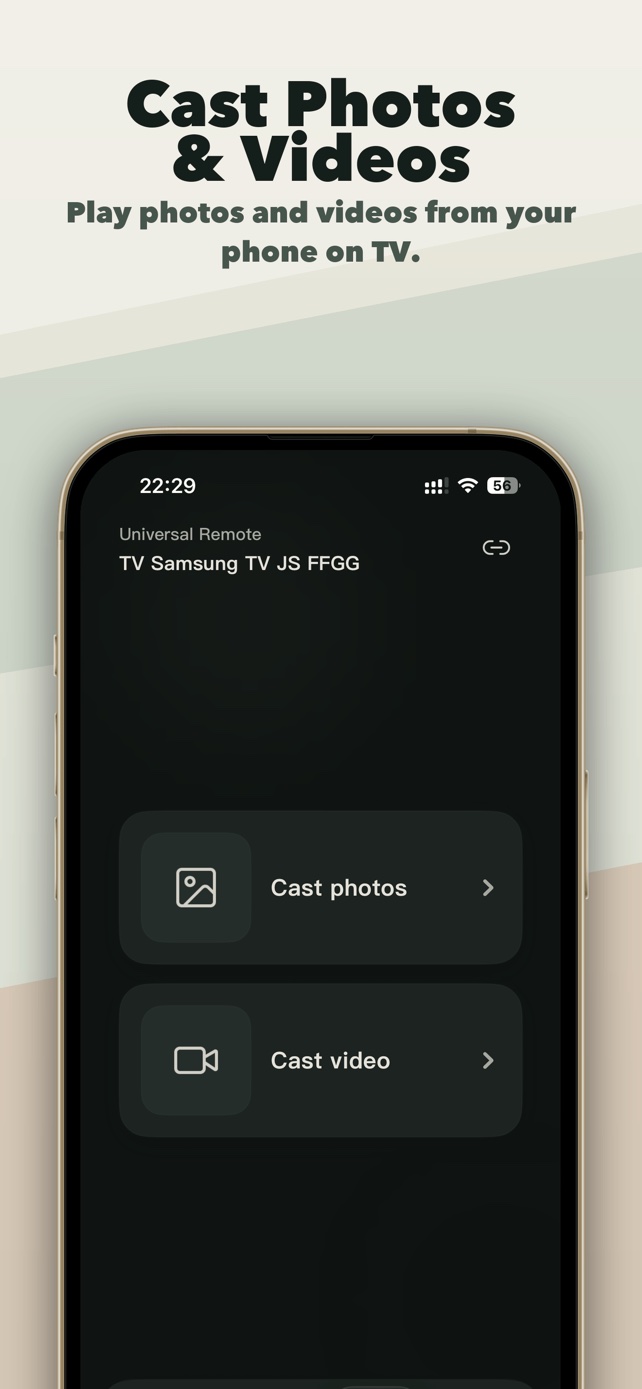
Applicable scope
Brands and product families
Connection steps
Pairing behavior
Choose the receiver and send a compatible personal photo or video. A cast session controls that media item; it is not continuous iPhone screen mirroring.
Photo / video cast
Confirm that the selected personal photo appears or the compatible local video plays on the TV. Home, Back and volume are remote-control checks, not evidence that media casting worked.
Optional technical detailsProtocol names and software-generation differences are kept here for advanced troubleshooting. Most people can follow the connection steps above without using this section.
Differences by model and software
Menu names and feature availability can vary by model, region and software version.
Cast receiver route only; no D-pad remote is claimed.
The TV receives one compatible photo or video and controls that sessionThe brand ships multiple operating systems; choose the platform-specific route.
The TV displays the live iPhone screen through AirPlay-compatible mirroringThe brand ships multiple operating systems; choose the platform-specific route.
Use the service's own AirPlay/Cast button when supportedSymptoms and fixes
| What you see | Likely cause | What to do |
|---|---|---|
| The TV does not appear | Local Network permission, guest Wi-Fi, VPN or client isolation is blocking discovery. | Enable iOS Local Network access, use the same non-guest LAN, pause the VPN and rescan with the TV awake. |
| A photo works but a video does not | The receiver cannot fetch or decode that media format, or protected streaming content blocks redistribution. | Try a common local file on the same LAN. Use the streaming app's own AirPlay/Cast control for protected services. |
| Connected, but buttons do nothing | The TV accepted discovery but blocks third-party control, selected a limited route, or is showing a protected screen. | Check the platform's network-control setting, return to Home and test basic navigation before advanced commands. |
| The brand is found but pairing instructions look wrong | That brand uses another operating system, such as Roku TV, Fire TV, Android/Google TV or VIDAA. | Check About/System information and follow the operating-system guide instead of the logo on the bezel. |
Manufacturer help
- 01
- 02
- 03
- 04
Did this guide help?
Thanks for your feedback.