
iOS
How to Enable Local Network Access on iPhone for TV Apps
Local Network permission lets TVRemoteX find compatible TVs on your home Wi‑Fi. On iPhone, open Settings > Privacy & Security > Local Network, enable TVRemoteX, then return to the app and scan again. Exact support still depends on the TV model and software version; check the manual for your model if a step does not match.
Download TVRemoteX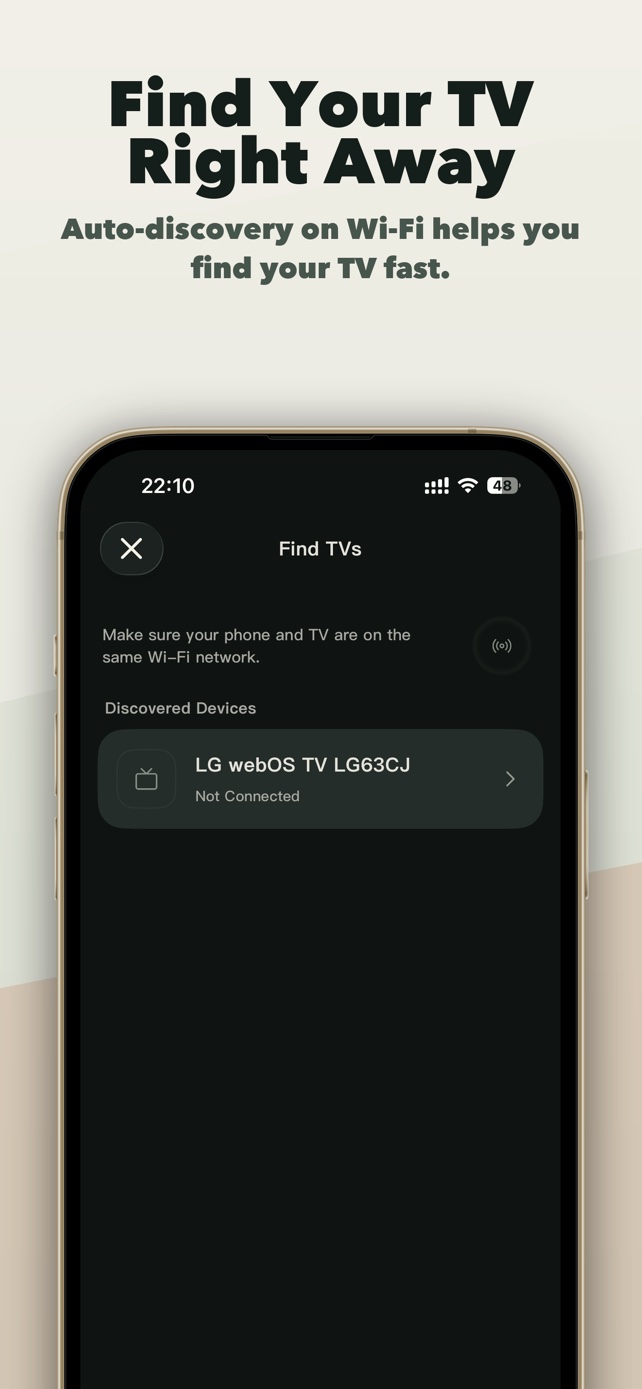
Enable Local Network access on iPhone
How do I enable Local Network access for TVRemoteX?
Open Settings > Privacy & Security > Local Network and turn on TVRemoteX if it is listed. Return to TVRemoteX and search again while the television is on and connected to your home network.
Why is TVRemoteX missing from the Local Network list?
iOS asks when an app first tries to browse the local network. Open TVRemoteX and start a device search, then check for the permission prompt and revisit Settings. Do not reset your iPhone or TV just to make the switch appear.
What does allowing Local Network access mean?
It lets the app look for and communicate with devices on your local network. Allow an app only when you understand why it needs access. You can turn the permission off in Settings later; TV discovery or control that depends on it may then stop working.
I allowed access. Why is the TV still not found?
Permission is one requirement. Check the TV’s network connection and power state, guest-network isolation and any VPN that blocks local traffic. If the TV appears but pairing fails, use its platform’s approval or code instructions.
TV not found on the same Wi-Fi · Find the right TV pairing guide
Applicable scope
Brands and product families
Use another guide when the TV runs
Connection steps
Allow iPhone Local Network access
When iOS asks, choose Allow. If it was denied, open Settings > Privacy & Security > Local Network > TVRemoteX, enable TVRemoteX, return to the app and scan again.
Keep the TV awake, then select it in TVRemoteX
Leave the TV on its Home screen, open TVRemoteX, start discovery and choose the matching device name. Do not approve a request you did not initiate.
Verify control before relying on advanced features
Test Home, Back and one volume command first. Keyboard, app launch, wake and casting are separate capabilities and may not be exposed by the selected route.
TV settings
Menu names and feature availability can vary by model, region and software version.
Settings > Privacy & Security > Local Network > TVRemoteXAppleOptional technical detailsProtocol names and software-generation differences are kept here for advanced troubleshooting. Most people can follow the connection steps above without using this section.
Differences by model and software
Menu names and feature availability can vary by model, region and software version.
Network remote control must be enabled in the TV menu when the model exposes the option.
Apps must ask before browsing devices on the local networkNo TV PIN; local network policy controls access.
Internet access can still work while TV discovery failsSymptoms and fixes
| What you see | Likely cause | What to do |
|---|---|---|
| The TV does not appear | Local Network permission, guest Wi-Fi, VPN or client isolation is blocking discovery. | Enable iOS Local Network access, use the same non-guest LAN, pause the VPN and rescan with the TV awake. |
| Connected, but buttons do nothing | The TV accepted discovery but blocks third-party control, selected a limited route, or is showing a protected screen. | Check the platform's network-control setting, return to Home and test basic navigation before advanced commands. |
| The documented setting is missing | Menu structure differs by model year, region or firmware, or the model does not expose local control. | Use the TV's built-in search or its exact model manual. Do not enable a similarly named setting unless the manual says it controls mobile/IP access. |
Manufacturer help
- 01
Did this guide help?
Thanks for your feedback.