
TVRemoteX for iPhone
iPhone TV keyboard: setup and typing fixes
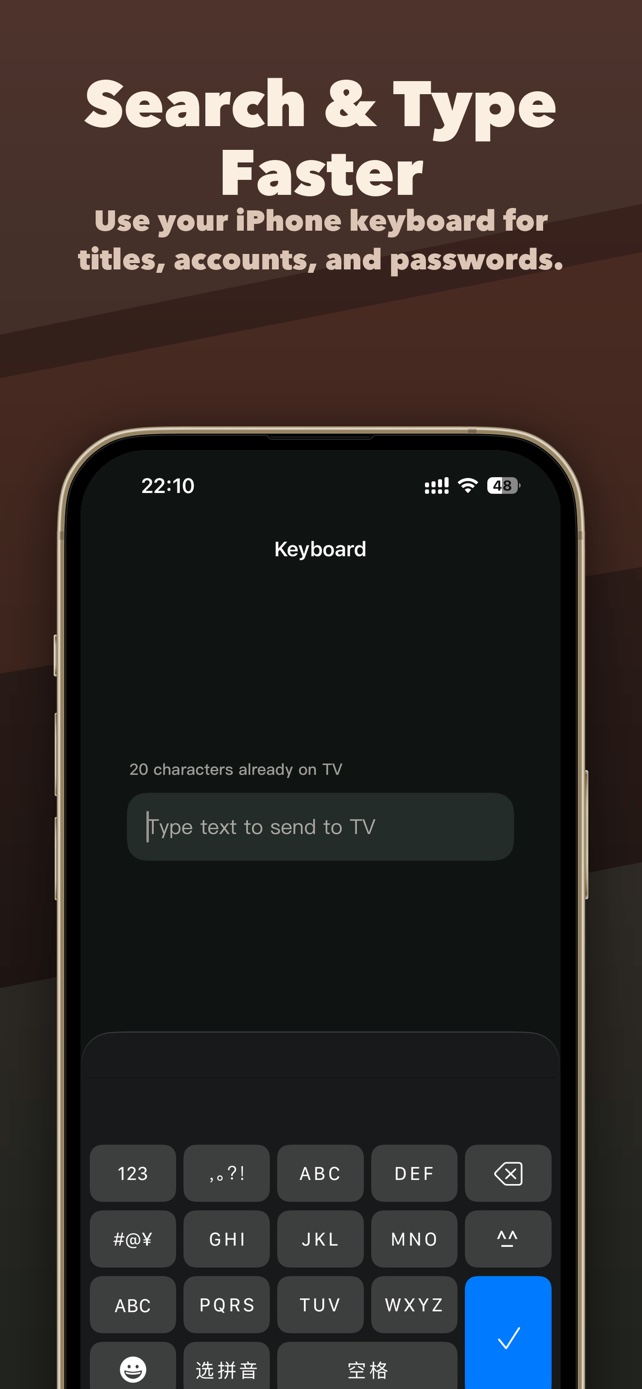
Use TVRemoteX to enter a TV search from your iPhone when the connected TV and focused field accept text input. Pair first, open the TV search box, then try a short word.
Free download with in-app purchases. Keyboard and other advanced controls may require a purchase; check the access and any trial allowance shown in the app before relying on this feature.
Before you type
Connect the iPhone and a compatible TV to the same reachable home network. Allow iPhone Local Network access and finish any approval or pairing prompt on the TV.
Use Home or a direction button to check the connection. If normal navigation fails too, fix the connection before troubleshooting the keyboard.
Send your first TV search
- Select the connected TV in TVRemoteX and open its remote controls.
- Navigate to a search box on the TV. Select the field so the television is ready to receive text.
- Open the keyboard in TVRemoteX and type a short, harmless word such as weather. Use the send or confirm control shown in the app.
- Watch the TV for the text. If it appears, submit the search using the control that the TV app expects. Entering text and submitting a search are separate actions.
- If text does not appear, use the checks below. Keep the TV's on-screen keyboard available as a fallback.
Match the symptom to the next step
| What happens | What to check |
|---|---|
| Direction buttons also stopped working | Open TVRemoteX, confirm the selected television, reconnect and test Home again. This is a connection issue before it is a keyboard issue. |
| Buttons work but no text appears | Select an editable TV text field. Try a normal search box; the current TV app or connection may not accept remote text. |
| Typing works in one app but not another | Input support is specific to the active app and field. Use the TV keyboard in the app that rejects text. |
| A password field rejects text | Protected fields may reject remote input. Enter it with the TV's own interface; use a harmless search word for testing. |
| Text appears but the search does not run | Use the TV app's Search, Go or confirmation button. Text delivery alone does not submit the search. |
Choose the right TV connection first
Samsung, LG, Roku and Android/Google TV use different connection methods. A successful connection does not establish keyboard support for every field. Start with your TV's setup guide, then check the exact app and field you want to use.
A TV's brand name or manufacturing year is not enough to promise text input. This guide does not publish an exact-model compatibility list.
Questions and answers
Can I type in every TV app?
No. The connected TV, its control interface and the active text field must each support input. Test the particular search field you need.
Can I use the keyboard before pairing?
Complete the TV connection first. The keyboard does not bypass TV approval, pairing codes or iPhone Local Network permission.
Does typing replace a physical remote?
It can help with supported TV fields after setup. You may still need physical controls to connect an offline TV, approve pairing or enter text in an unsupported field.
Find your TV and get help
- Samsung TV remote app for iPhone: setup and fixes
- LG TV remote app for iPhone: webOS pairing
- Roku remote app not finding TV on iPhone: fixes
- Google TV and Android TV remote on iPhone: pairing code
- TV Not Found on iPhone? Same Wi-Fi Connection Fixes
- How to Enable Local Network Access on iPhone for TV Apps
Sources and scope
Instructions describe TVRemoteX setup and platform conditions; they do not verify a particular television model. Read how these guides are maintained.