
Selected JointSpace-capable Philips models / Philips Android or Google TV
Philips TV remote app for iPhone: pairing guide
Check your Philips TV’s operating system and exact-model manual first. Android TV and Google TV models use their platform’s pairing method; other models need documented compatible network control. Do not assume every Philips TV supports JointSpace or the same pairing steps. Exact support still depends on the TV model and software version; check the manual for your model if a step does not match.
Download TVRemoteX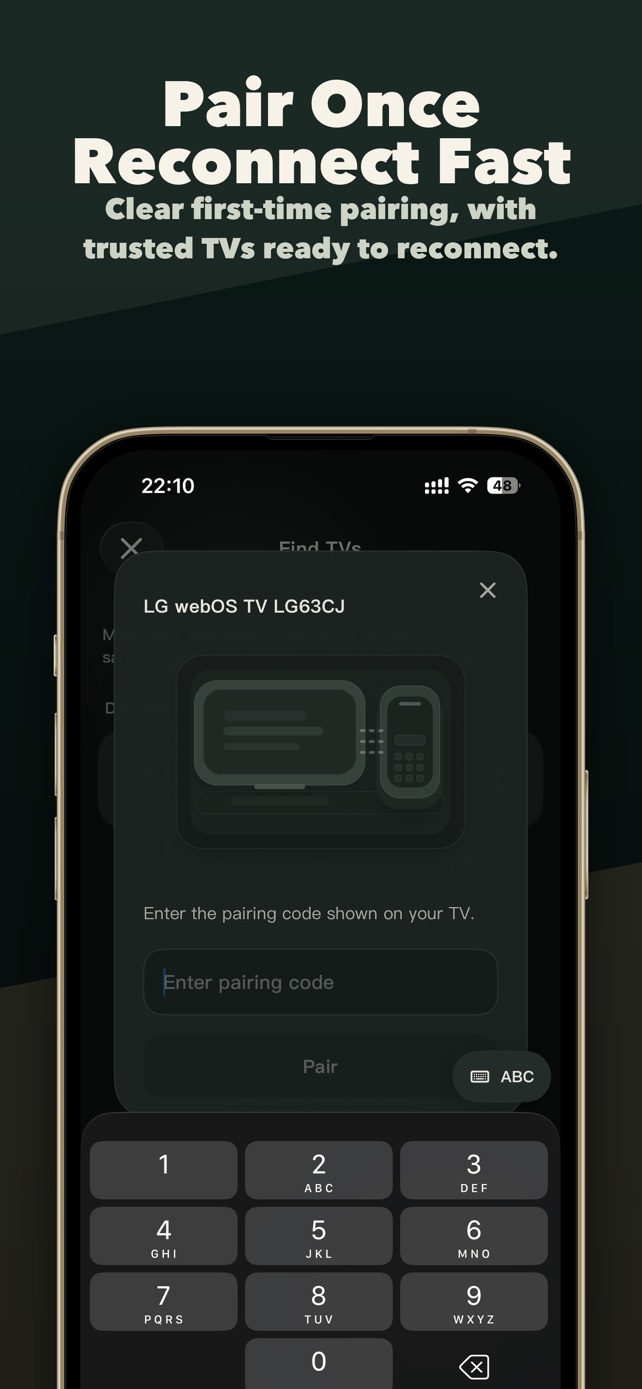
Applicable scope
Brands and product families
Use another guide when the TV runs
Connection steps
Confirm the TV platform first
Open the TV's About, Support or System information screen and note the operating system or model. Multi-platform brands such as Hisense, TCL, Toshiba, Philips, Sony and Xiaomi can use different control routes.
Keep the TV awake, then select it in TVRemoteX
Leave the TV on its Home screen, open TVRemoteX, start discovery and choose the matching device name. Do not approve a request you did not initiate.
Choose the documented Philips route
Use JointSpace only when the exact model's documentation identifies a compatible route; follow the current approval or PIN shown by the TV. Philips Android and Google TV models should use the corresponding platform guide.
Verify control before relying on advanced features
Test Home, Back and one volume command first. Keyboard, app launch, wake and casting are separate capabilities and may not be exposed by the selected route.
Optional technical detailsProtocol names and software-generation differences are kept here for advanced troubleshooting. Most people can follow the connection steps above without using this section.
Differences by model and software
Menu names and feature availability can vary by model, region and software version.
Depending on the model and software, the TV may show an approval prompt or PIN.
PIN behavior is route-specific; confirm availability in the exact consumer-model manualOlder vendor protocol with narrower capabilities and model-specific setup.
Activation and supported models are firmware-specific; use the exact model manualThe brand ships multiple operating systems; choose the platform-specific route.
Use the Android/Google TV guide when that route is detectedSymptoms and fixes
| What you see | Likely cause | What to do |
|---|---|---|
| The TV does not appear | Local Network permission, guest Wi-Fi, VPN or client isolation is blocking discovery. | Enable iOS Local Network access, use the same non-guest LAN, pause the VPN and rescan with the TV awake. |
| The pairing code is rejected | The code expired, belongs to an earlier session or was entered incorrectly. | Close the old dialog, start pairing again and follow the current prompts exactly. |
| Connected, but buttons do nothing | The TV accepted discovery but blocks third-party control, selected a limited route, or is showing a protected screen. | Check the platform's network-control setting, return to Home and test basic navigation before advanced commands. |
| The brand is found but pairing instructions look wrong | That brand uses another operating system, such as Roku TV, Fire TV, Android/Google TV or VIDAA. | Check About/System information and follow the operating-system guide instead of the logo on the bezel. |
| Power off works but wake does not | Deep standby disabled network wake, the TV lost Wi-Fi, or this connection method does not support wake. | If your model offers a network or mobile-device wake setting, enable it. Otherwise turn on the TV with its physical remote and reconnect. |
| Keyboard input is unavailable | The active route does not expose text input or the TV is not focused in an editable field. | Open a search or sign-in text field on the TV, then retry. Use the on-TV keyboard when the route remains unavailable. |
| An app shortcut is missing or will not open | The TV did not report that app, the app is not installed, or its identifier differs by model or region. | Install and open the app once on the TV, refresh the app list, and do not assume a shortcut exists on every region. |
Manufacturer help
- 01
- 02jointSPACE developer projectJointSpace API protocol reference; not proof for every current Philips model
- 03
- 04
Did this guide help?
Thanks for your feedback.